Integrating WhatsApp Business with Frontegg lets your application read and manage WhatsApp Business Accounts (WABAs), send and receive messages, manage phone numbers and message templates, and act on behalf of a business on the WhatsApp Business Platform — all through Frontegg's integration layer using Meta OAuth.
The integration is built on top of the Meta Graph API and the WhatsApp Business Cloud API. You configure the integration by creating a Meta for Developers app, connecting it to a Meta Business Portfolio, and adding the required permissions.
Prerequisites
Prerequisites
- A Meta for Developers account with a verified phone number and email.
- A Meta Business Portfolio (also called a Business Manager account). If your company already has one, ask your business admin to add you instead of creating a new portfolio.
- A WhatsApp Business Account (WABA) connected to that Business Portfolio, with at least one verified phone number.
- Permission to create apps in the Business Portfolio and request data access (typically Admin role).
Sign in to the Meta for Developers apps page with your Facebook account. Click Create App to start the app creation flow.
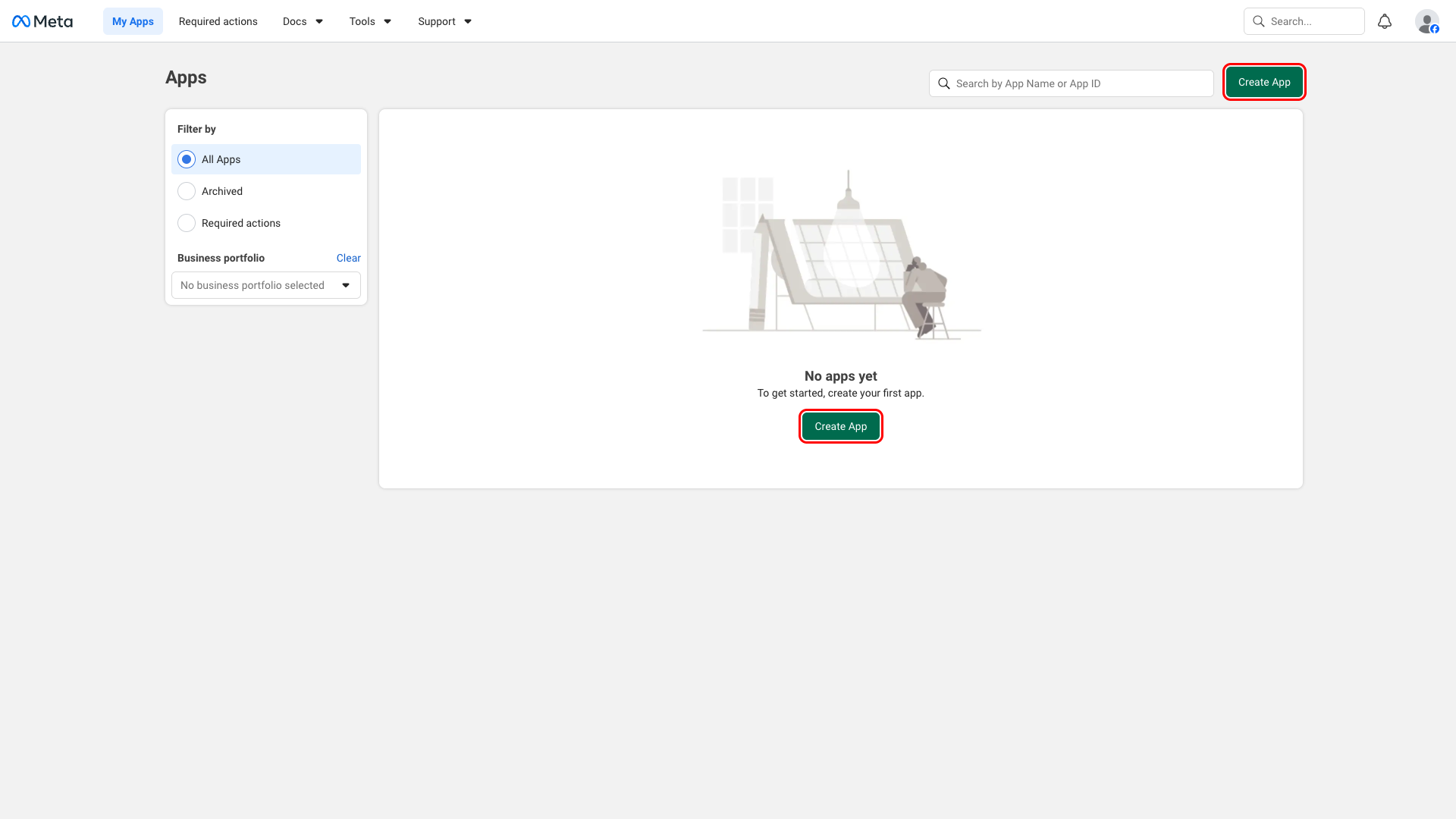
Enter an App name (for example, Frontegg Integration) and confirm the App contact email. Meta uses this email for policy notifications and recovery — set it to an address you check regularly. Click Next.
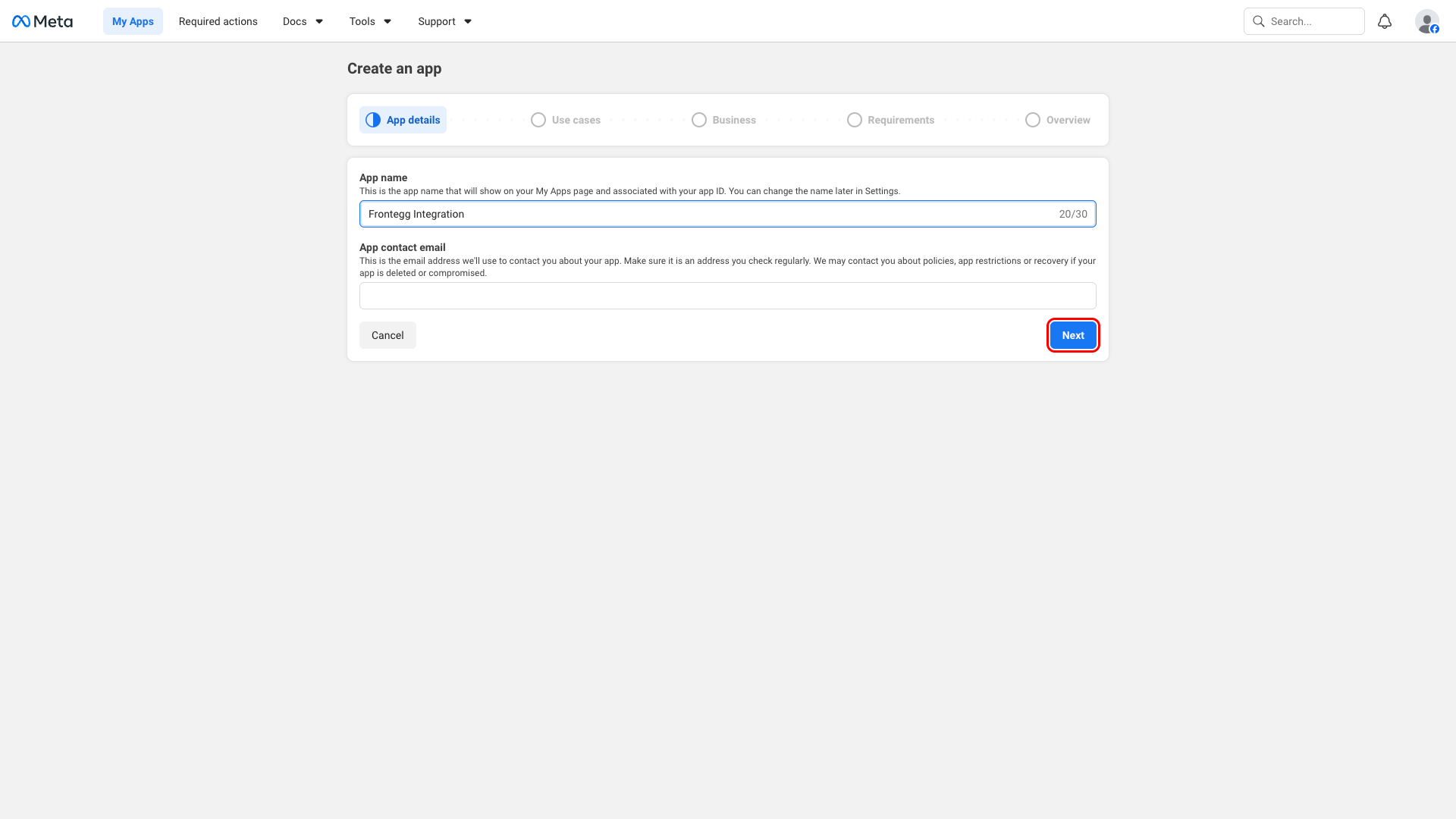
On the Use cases step, choose Connect with customers through WhatsApp. This automatically provisions the WhatsApp product, Facebook Login for Business, and the whatsapp_business_management and whatsapp_business_messaging permissions. Click Next.
Use cases can't be combined
Use cases can't be combined
After selecting the WhatsApp use case, other use cases (Facebook Login, Instant Games, etc.) become disabled on the same app. If you need them for a different integration, create a separate app.
On the Business step, choose the Business Portfolio that owns your WABA. If no portfolios are listed, create one in Meta Business Manager first, then return to this step.
Click Next through the Requirements and Overview steps, then click Create app. Meta opens the app dashboard once the app is created.
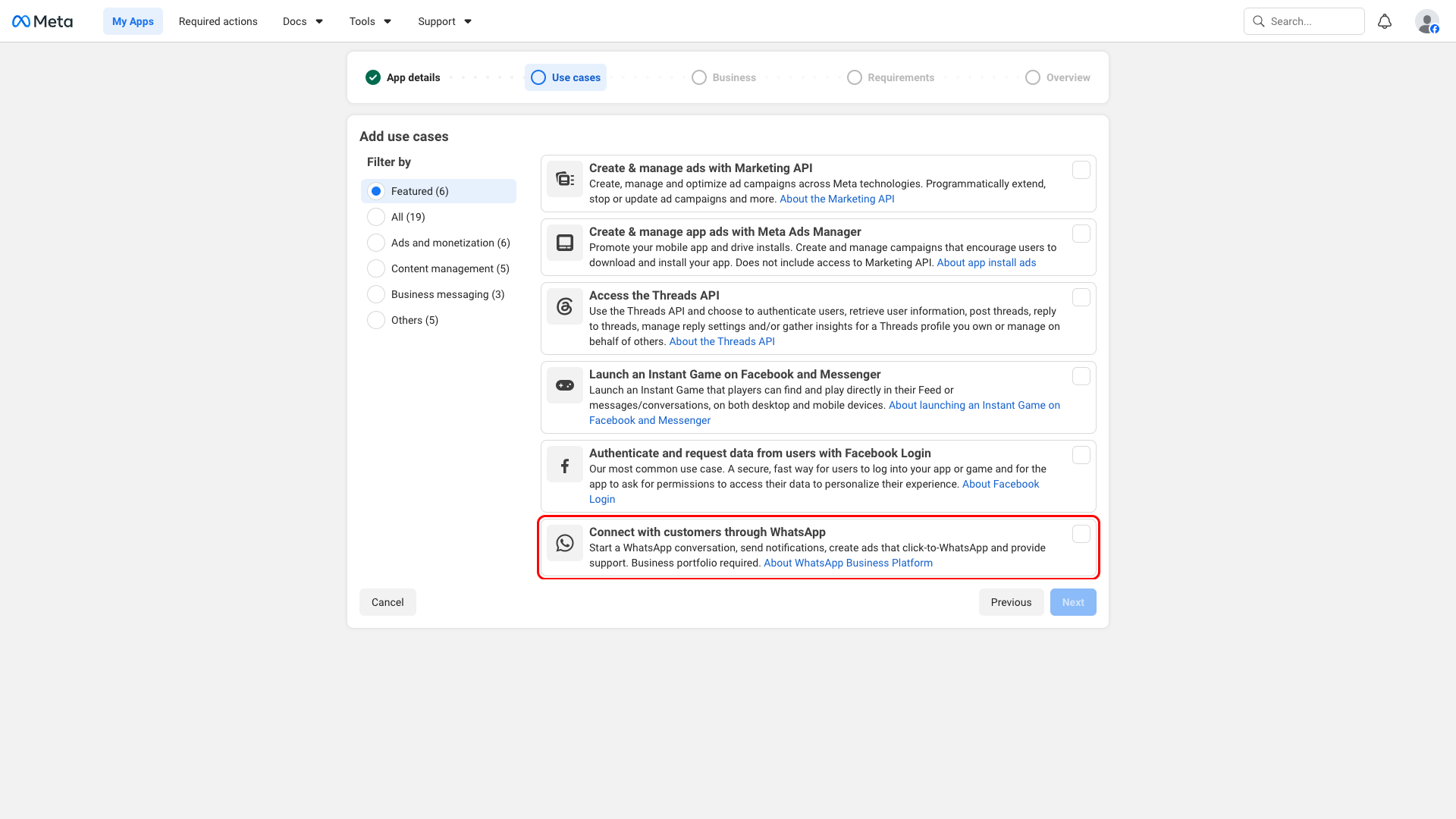
In the app dashboard, open App settings → Basic from the left navigation. Copy the App ID — this is your Frontegg Client ID. Click Show next to App secret (Meta asks you to re-enter your Facebook password), then copy the value — this is your Frontegg Client Secret.
Treat the App secret like a password
Treat the App secret like a password
The App secret grants full access to your app. Never commit it to source control or share it outside the Frontegg portal configuration.
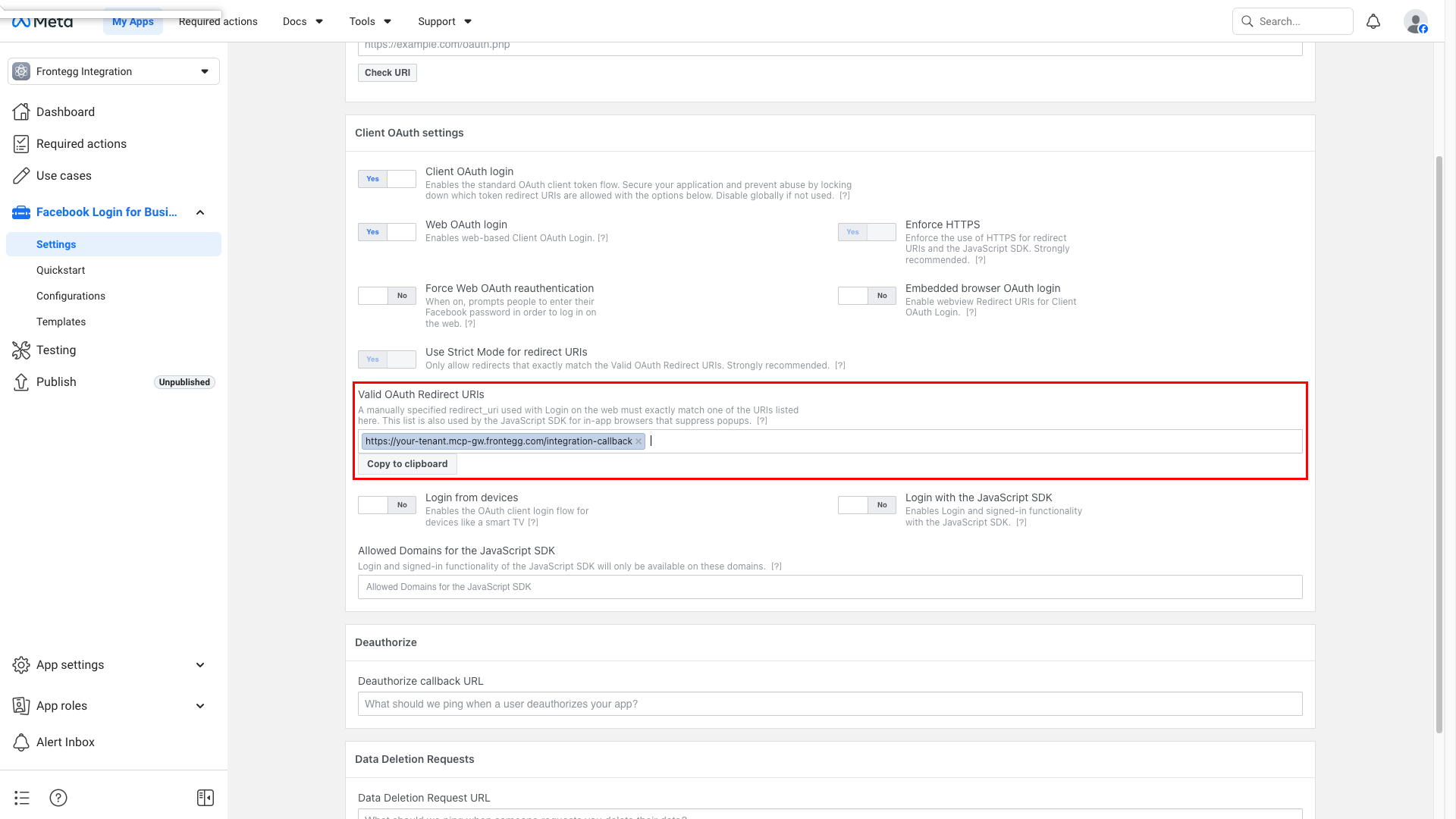
In the left navigation, expand Facebook Login for Business and click Settings. In the Valid OAuth Redirect URIs field, paste your Frontegg redirect URL:
https://YOUR_MCP_GATEWAY_URL/integration-callback
Replace YOUR_MCP_GATEWAY_URL with the MCP Gateway URL from the Frontegg portal Settings → Basic configuration page. Press Enter to add the URI, then click Save changes at the bottom of the page.
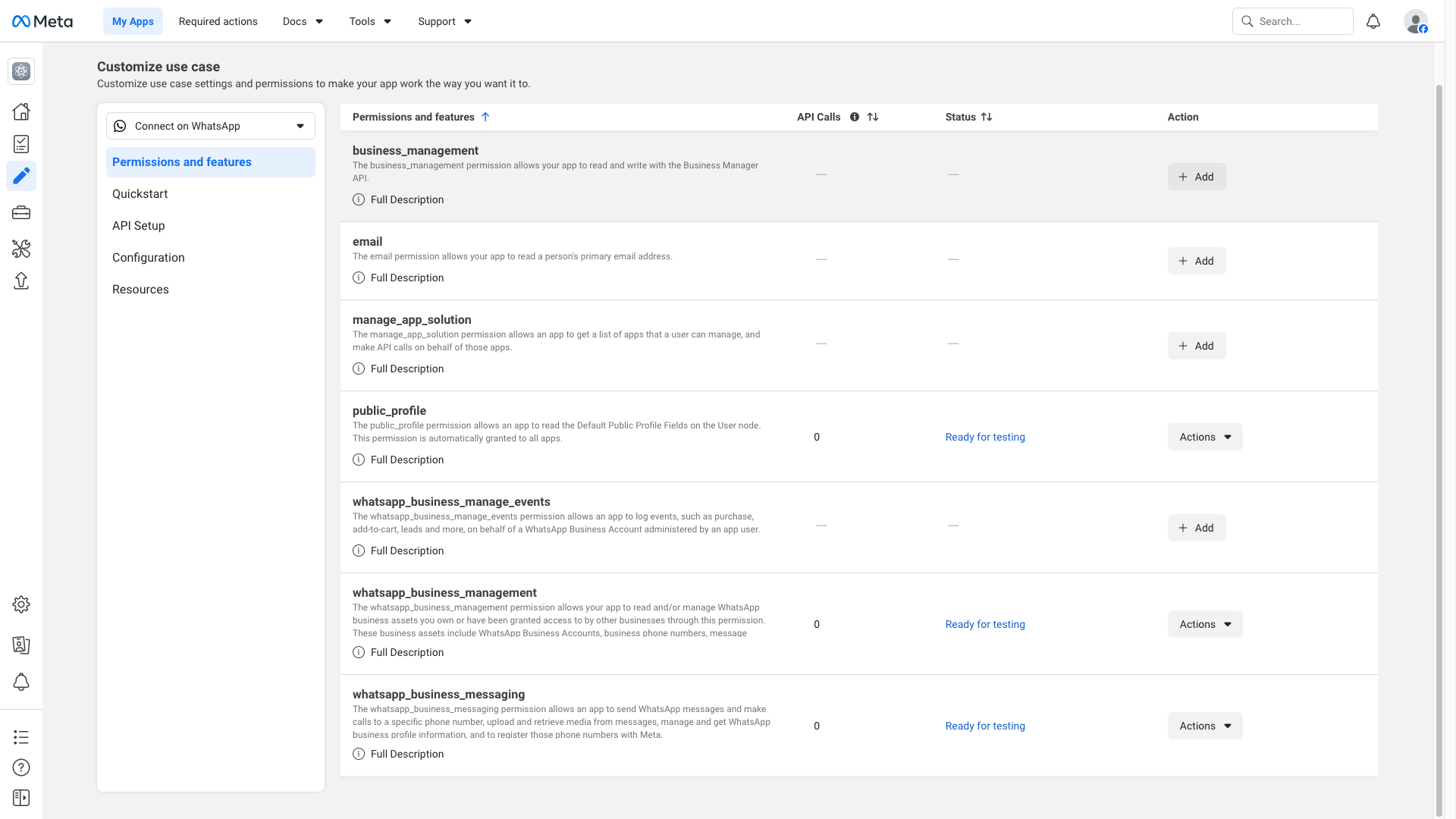
In the left navigation, click Use cases, then open the Connect with customers through WhatsApp use case and select the Permissions and features tab. The WhatsApp use case ships with whatsapp_business_management and whatsapp_business_messaging already enabled (status Ready for testing). You need to add business_management manually — click Add in that row.
The integration requires the following permissions:
| Permission | Description |
|---|---|
whatsapp_business_management | Read and manage WhatsApp business assets: WABAs, phone numbers, message templates, QR codes, and webhook subscriptions. |
whatsapp_business_messaging | Send WhatsApp messages and calls, upload and retrieve media, manage business profile info, and register phone numbers. |
business_management | Read and write with the Business Manager API. Required so Frontegg can resolve the WABA your phone number belongs to. |
App Review required for production
App Review required for production
The whatsapp_business_management, whatsapp_business_messaging, and business_management permissions are usable for testing immediately, but Meta requires you to submit the app for App Review before they can act on behalf of users outside your development team. App Review needs a Privacy Policy URL, an app icon, and a screencast demonstrating each permission.
Once you have your App ID (Client ID) and App secret (Client Secret), enter them in the Frontegg portal:
- Open the Frontegg portal and navigate to [ENVIRONMENT] → Integrations → WhatsApp Business.
- Enter the Client ID and Client Secret in the corresponding fields.
- Select the required scopes (
whatsapp_business_management,whatsapp_business_messaging,business_management). - Click Save.
When a user authorizes the integration, Meta prompts them to select a WABA and grant the requested permissions.