Square is a payments and commerce platform for taking payments and running a business. Integrating Square with Frontegg lets your application take and refund payments, create and pay orders, manage customers, browse the catalog and inventory, and read locations, payouts, bank accounts, and disputes on behalf of your users — all through Frontegg's integration layer (Square API v2). You can authenticate with either OAuth 2.0 (recommended when connecting on behalf of multiple merchants) or a Square access token.
Prerequisites
Prerequisites
- A Square account
- Access to the Square Developer Console to create an application
You create an application in the Square Developer Console. The application provides the Application ID (Client ID) and an Application secret (Client Secret), and defines the redirect URL that Square returns merchants to after they authorize access.
Sign in to the Square Developer Console and click + to create an application. Enter a name (for example, Frontegg Integration).
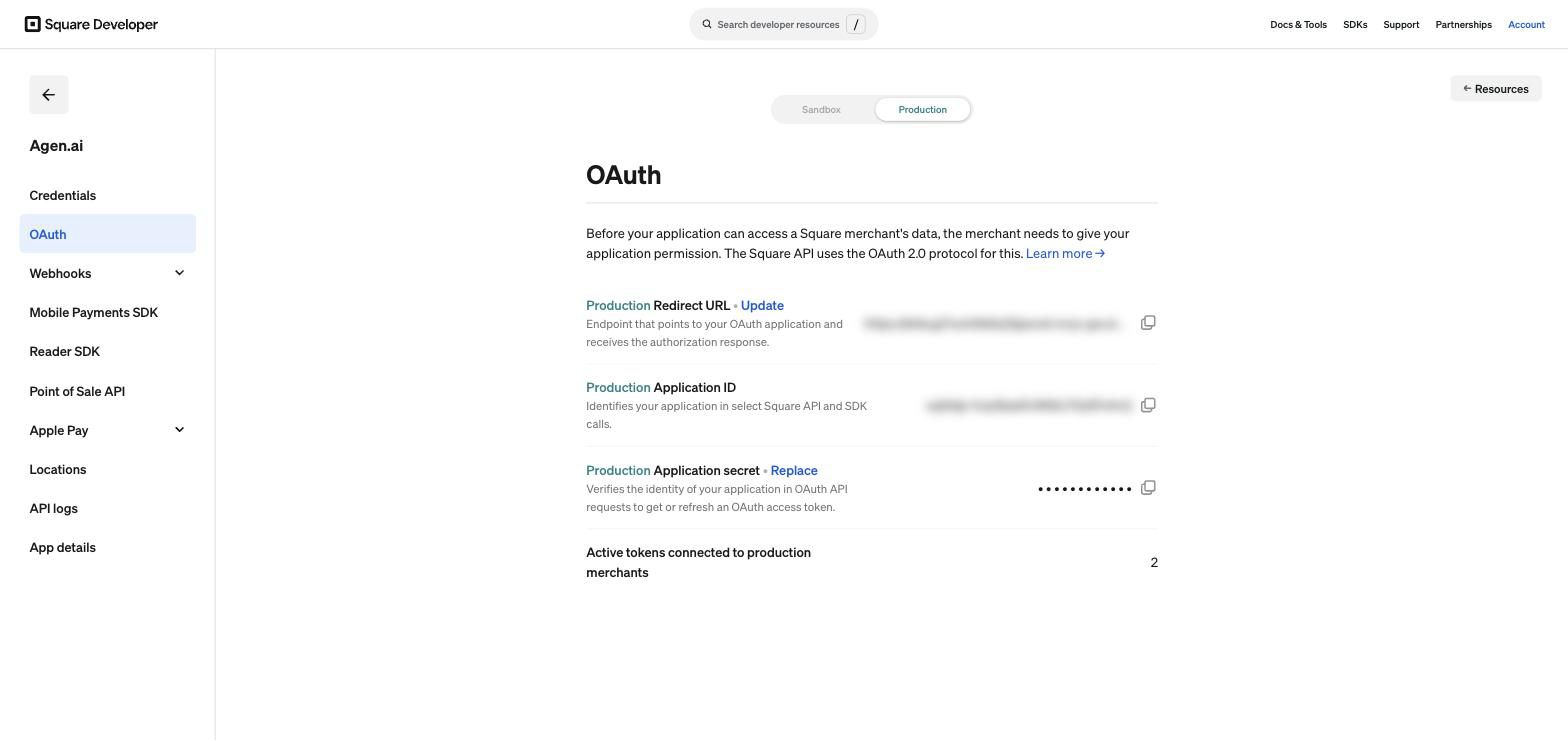
Open your application and go to the OAuth page. Make sure the Production environment is selected, then:
- Next to Redirect URL, click Update and enter your Frontegg Redirect URL:
https://YOUR_MCP_GATEWAY_URL/integration-callback - Copy the Application ID — this is your Client ID.
- Copy the Application secret — this is your Client Secret.
Keep your Application secret safe
Keep your Application secret safe
The Application secret grants access to your account through the API. Treat it like a password and never expose it in client-side code or commit it to version control.
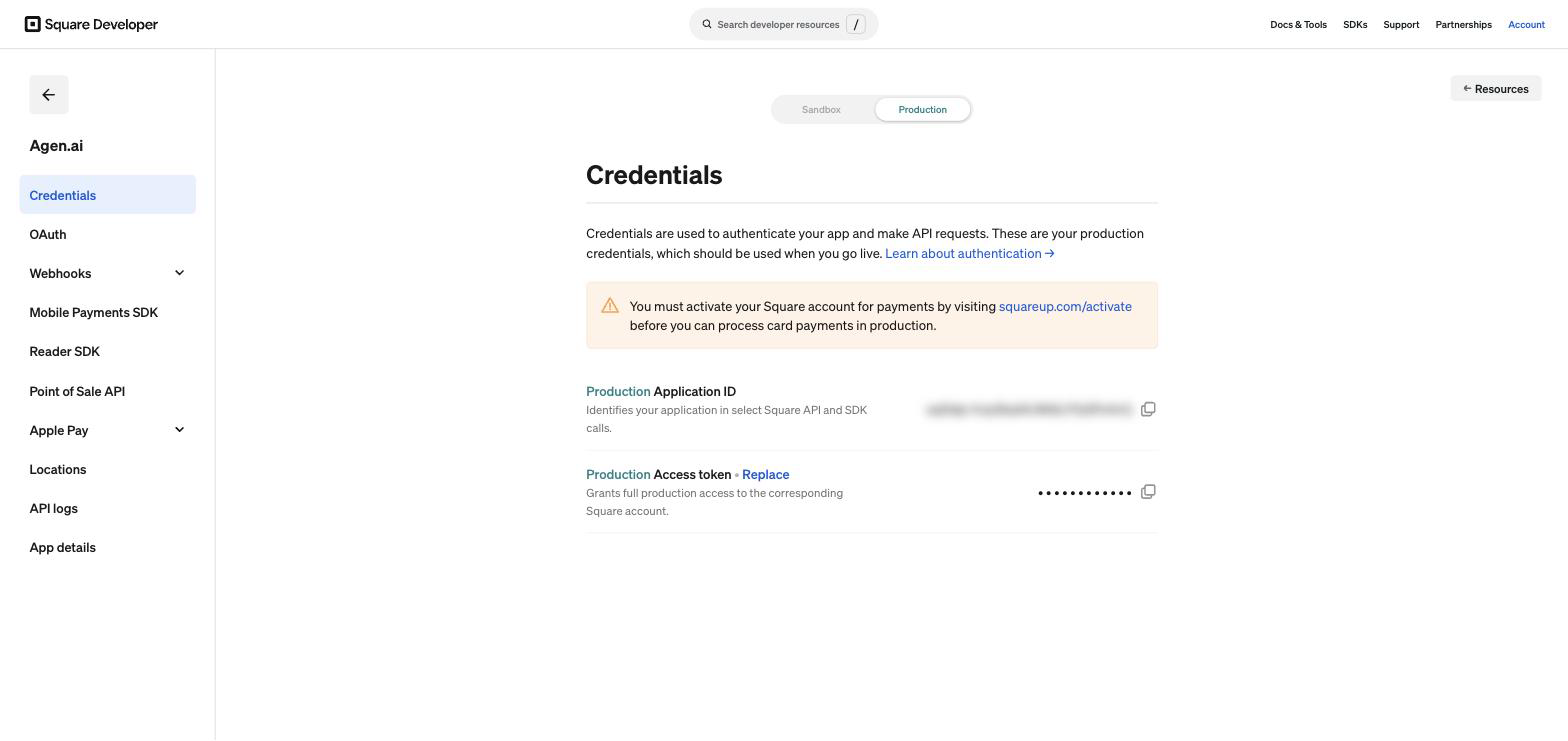
If you are connecting a single Square account rather than authorizing multiple merchants, you can use an access token instead of the OAuth flow. On your application's Credentials page, with the Production environment selected, copy the Access token.
Keep your access token safe
Keep your access token safe
The access token grants full production access to the corresponding Square account. Treat it like a password, and use Replace on the Credentials page to rotate it if it is exposed.
Configure the integration in the Frontegg portal using the method you chose:
- Open the Frontegg portal and navigate to [ENVIRONMENT] → Integrations → Square.
- For OAuth, enter the Client ID and Client Secret. For an access token, paste it into the Access Token field instead.
- Click Save.
Square uses the following scopes:
| Scope | Description |
|---|---|
PAYMENTS_READ | View payments |
PAYMENTS_WRITE | Take and refund payments |
PAYMENTS_WRITE_ADDITIONAL_RECIPIENTS | Split payments to additional recipients |
ORDERS_READ | View orders |
ORDERS_WRITE | Create and update orders |
CUSTOMERS_READ | View customers |
CUSTOMERS_WRITE | Create and update customers |
ITEMS_READ | View catalog items |
ITEMS_WRITE | Create and update catalog items |
INVENTORY_READ | View inventory counts |
INVENTORY_WRITE | Adjust inventory counts |
MERCHANT_PROFILE_READ | View locations and merchant profile |
PAYOUTS_READ | View payouts |
BANK_ACCOUNTS_READ | View linked bank accounts |
DISPUTES_READ | View disputes |
DISPUTES_WRITE | Respond to disputes |
Keep your credentials secure
Keep your credentials secure
Never share or commit your Application secret or access token to version control.