Microsoft 365 is Microsoft's suite of productivity and collaboration apps. This is a unified integration over Microsoft Graph — a single OAuth app that covers Entra ID (users and groups), Outlook mail and contacts, Calendar, Teams, OneDrive and Excel, SharePoint, To Do, and OneNote. Integrating Microsoft 365 with Frontegg lets your application work across all of these on behalf of your users through Frontegg's integration layer. Microsoft 365 authenticates with OAuth 2.0 (Authorization Code flow) via Microsoft Entra, so you register an app in the Microsoft Entra admin center to obtain a Client ID and Client Secret.
Prerequisites
Prerequisites
- A Microsoft 365 account with access to the Microsoft Entra admin center
- Permission to register applications in your Microsoft Entra directory (and, for organization-wide use, to grant admin consent)
You register an application in Microsoft Entra. The app provides the Application (client) ID and a Client Secret, and defines the redirect URI that Microsoft returns users to after they authorize access. For single-tenant apps you also provide your Directory (tenant) ID.
Sign in to the Microsoft Entra admin center and go to Entra ID → App registrations. Click New registration, enter a name (for example Frontegg Integration), choose the supported account types that match your use case, and click Register.
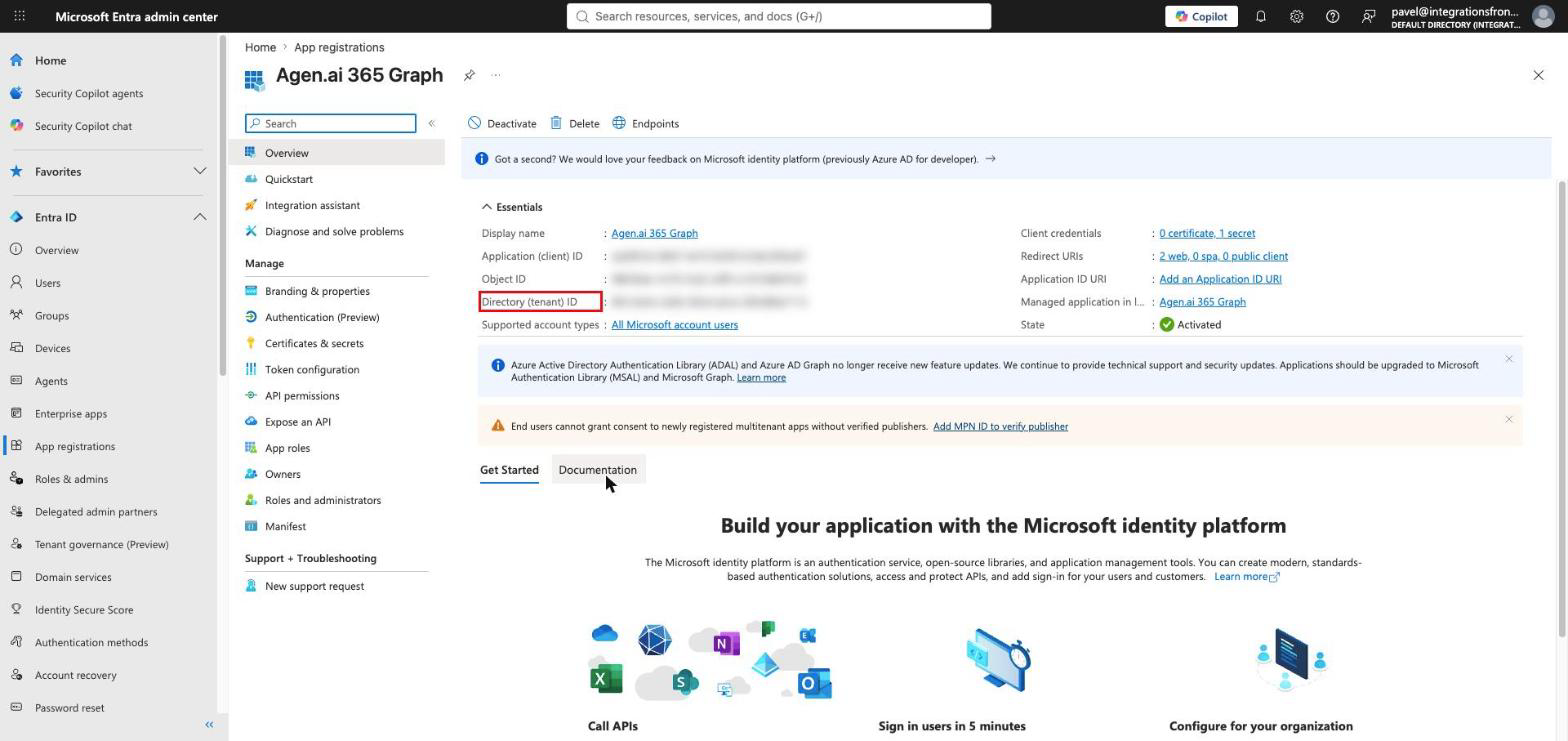
On the app's Overview page, copy the Application (client) ID — this is your Client ID. If your app is single-tenant, also copy the Directory (tenant) ID. For multi-tenant apps, you can leave the tenant ID as common in Frontegg.
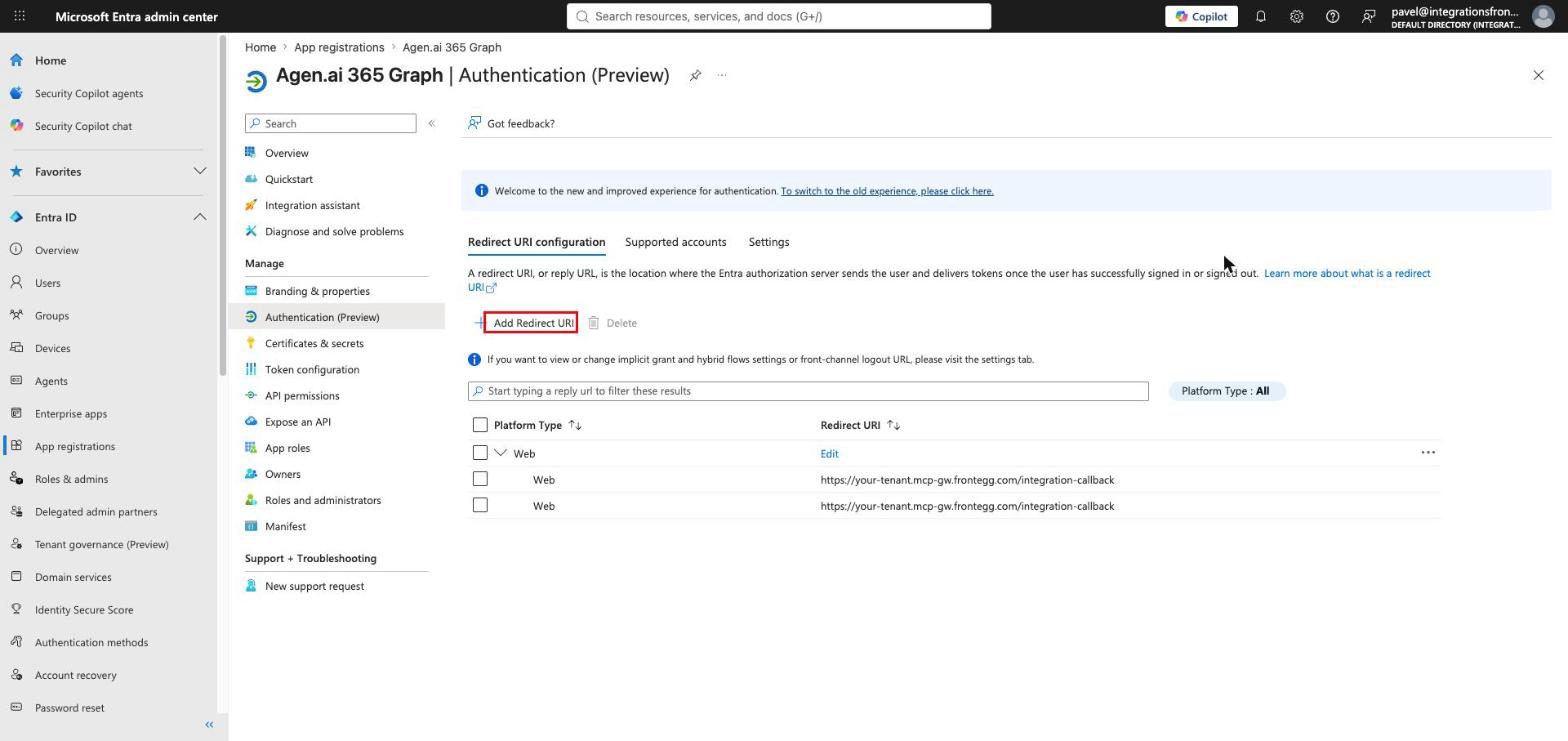
Open Authentication, add a Web platform (if not already present), and set the redirect URI to your Frontegg Redirect URL: https://YOUR_MCP_GATEWAY_URL/integration-callback
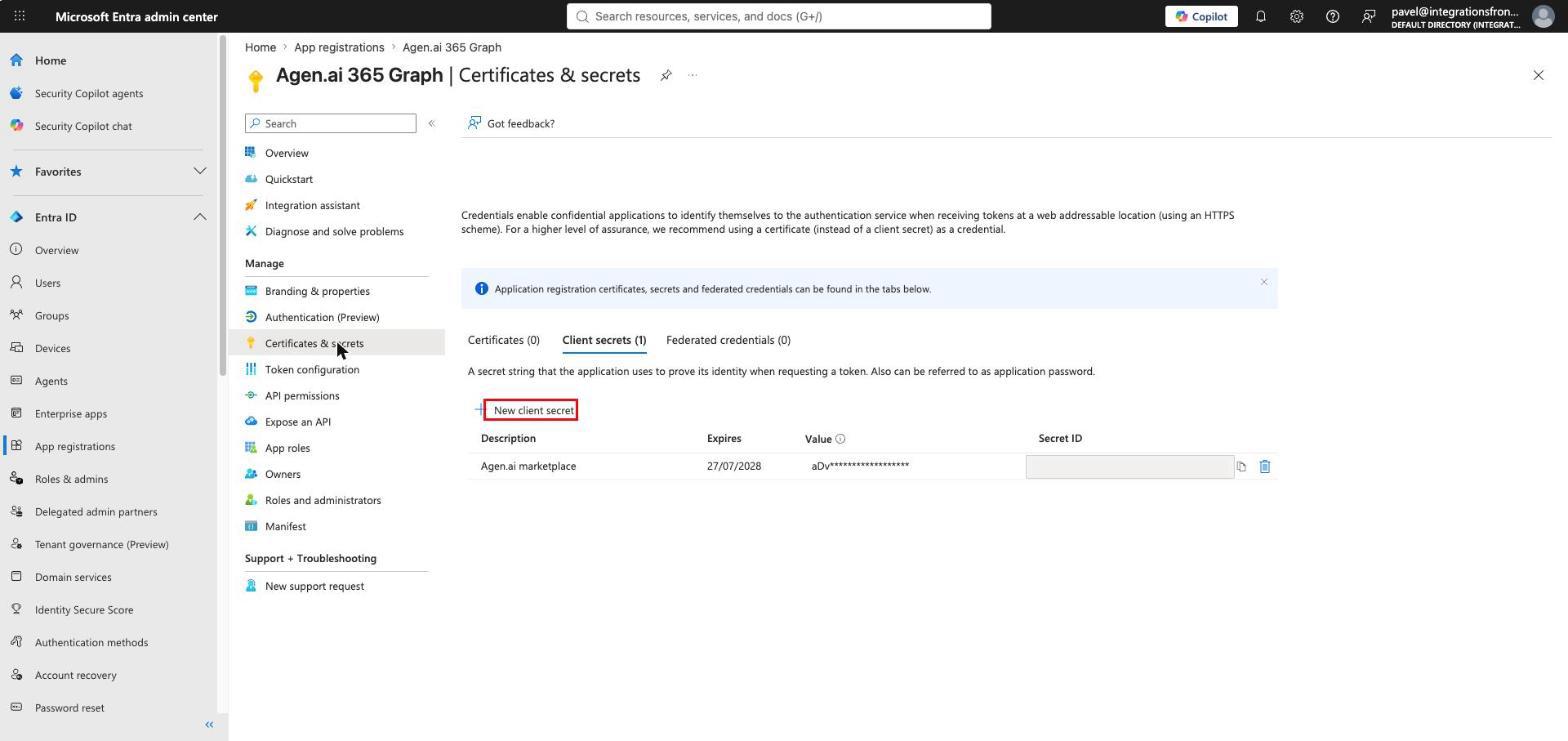
Open Certificates & secrets → Client secrets and click New client secret. Add a description and an expiry, then click Add. Copy the secret Value immediately.
Copy your Client Secret now
Copy your Client Secret now
The secret Value is shown only once, right after you create it — Entra masks it afterward and shows only the Secret ID. Copy it immediately and store it securely; treat it like a password. If you lose it, create a new client secret.
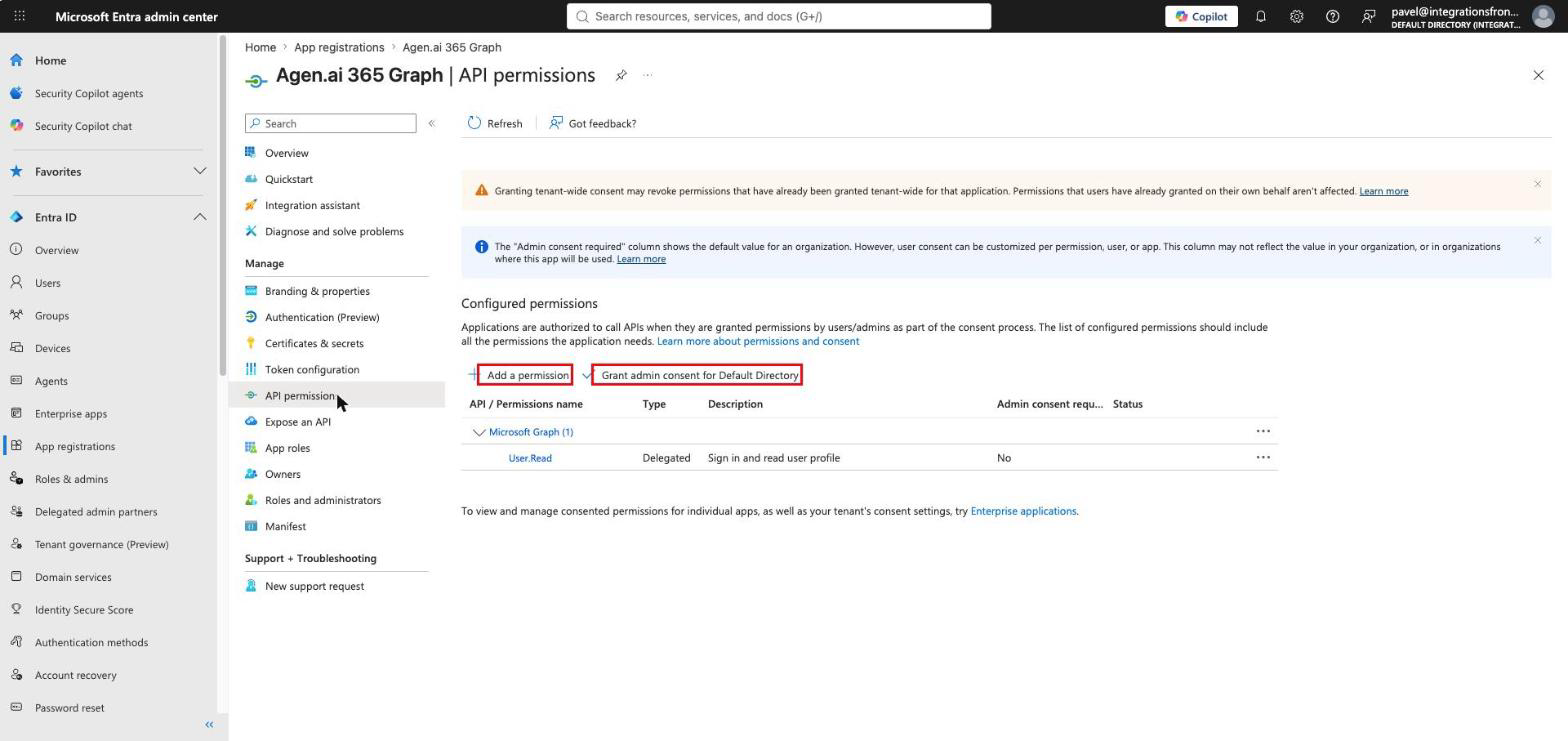
Open API permissions. Frontegg requests the Microsoft Graph delegated permissions it needs during authorization, but for organization-wide use an administrator may need to click Grant admin consent so users are not prompted individually. Use Add a permission → Microsoft Graph → Delegated permissions if you want to pre-configure them.
Once you have your Client ID and Client Secret, configure the integration in the Frontegg portal:
- Open the Frontegg portal and navigate to [ENVIRONMENT] → Integrations → Microsoft 365.
- Enter the Client ID (Application (client) ID) and the Client Secret.
- Enter your Directory (tenant) ID for a single-tenant app, or leave it as
commonfor a multi-tenant app. - Click Save.
Keep your credentials secure
Keep your credentials secure
Never share or commit your Client Secret to version control.
Frontegg requests Microsoft Graph delegated permissions covering the connected services, plus the OIDC basics (openid, profile, email) and offline_access for refresh tokens:
| Area | Microsoft Graph permissions |
|---|---|
| Users & directory | User.Read, User.Read.All, User.ReadWrite.All, Group.Read.All, Group.ReadWrite.All, Application.Read.All, Directory.Read.All |
| Mail & contacts | Mail.Read, Mail.ReadWrite, Mail.Send, MailboxSettings.Read, MailboxSettings.ReadWrite, Contacts.Read, Contacts.ReadWrite |
| Calendar | Calendars.Read, Calendars.Read.Shared, Calendars.ReadWrite |
| Teams | Team.ReadBasic.All, Team.Create, Channel.ReadBasic.All, Channel.Create, ChannelMessage.Read.All, ChannelMessage.Send, Chat.Read, Chat.ReadWrite, Chat.Create, OnlineMeetings.ReadWrite, TeamMember.Read.All |
| Files (OneDrive / Excel) | Files.Read, Files.Read.All, Files.ReadWrite, Files.ReadWrite.All |
| SharePoint | Sites.Read.All, Sites.ReadWrite.All, Sites.Manage.All, Sites.FullControl.All |
| Tasks (To Do) | Tasks.Read, Tasks.ReadWrite |
| Notes (OneNote) | Notes.Read, Notes.Create, Notes.ReadWrite |