GC AI is an AI platform for in-house legal teams covering contract review, legal research, document drafting, and knowledge management.
It can be connected to Agen.co two ways, matching the Official / In-house filter in the connector picker:
- Official — Agen.co connects through GC AI's own hosted MCP server, so your AI agents use the same chat, playbook, file, and project tools GC AI exposes to MCP clients.
- In-house — Agen.co wraps the GC AI API directly through its own integration layer, using an API key you generate in GC AI's settings.
Pick Official if the built-in MCP tools cover what your agents need. Fall back to In-house if you need broader API coverage, such as reading usage data or working with company profiles.
Prerequisites
Prerequisites
- A GC AI account with access to app.gc.ai
- An organization admin must have MCP access turned on (see step 1 below)
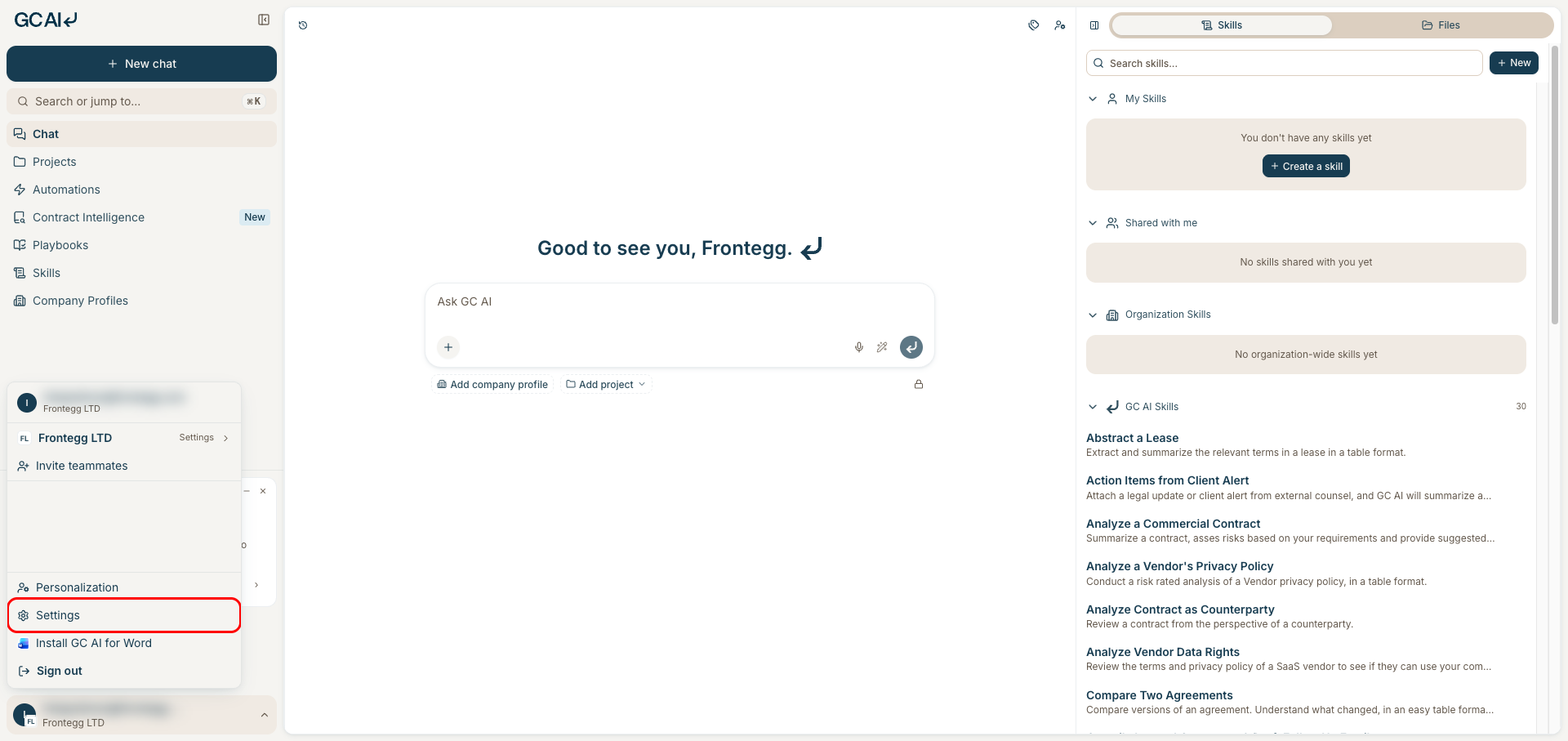
- Sign in to app.gc.ai, open the account menu in the bottom-left corner, and click Settings. In the settings navigation, select API, then under MCP access turn on Allow team to connect MCP clients — this lets members sign in to the GC AI MCP server with their own GC AI account, with each connection following that member's existing permissions. Only an organization admin can change this setting.
- In the Agen.co portal, go to Connectors → My connectors and click Add connector.
- In the search bar, type
GC AIand select it from the results. - In the Instance Slug field, enter a slug for this connector instance — it prefixes each imported tool as
slug__tool, so a second instance of the same connector needs a slug of its own. Use lowercase kebab-case. You can change it later from the connector's settings. - Click Connect.
- You're redirected to GC AI to sign in and approve access. No API key needs to be entered manually.
- Return to Agen.co and click Add below the list of tools that were added.
Once connected, GC AI appears under My connectors with tools spanning:
| Area | What it covers |
|---|---|
| Chats | Driving GC AI chat conversations |
| Playbooks | Running playbooks and managing their checks |
| Files & folders | Managing files and folders |
| Projects | Managing projects |
| Skills | Working with skills |
Enabling the GC AI connector isn't enough on its own. Tool calls remain denied until you create a policy that grants access to the specific tools you want to expose.
GC AI is an AI platform for in-house legal teams that covers contract review, legal research, document drafting, and knowledge management. Integrating GC AI with Frontegg lets your application drive GC AI chats and playbook runs, manage files, folders, and projects, maintain playbooks and their checks, work with skills and company profiles, and read usage data on behalf of your users through a single GC AI API key.
Prerequisites
Prerequisites
- A GC AI account with access to app.gc.ai
- Organization-admin permissions to create an organization API key
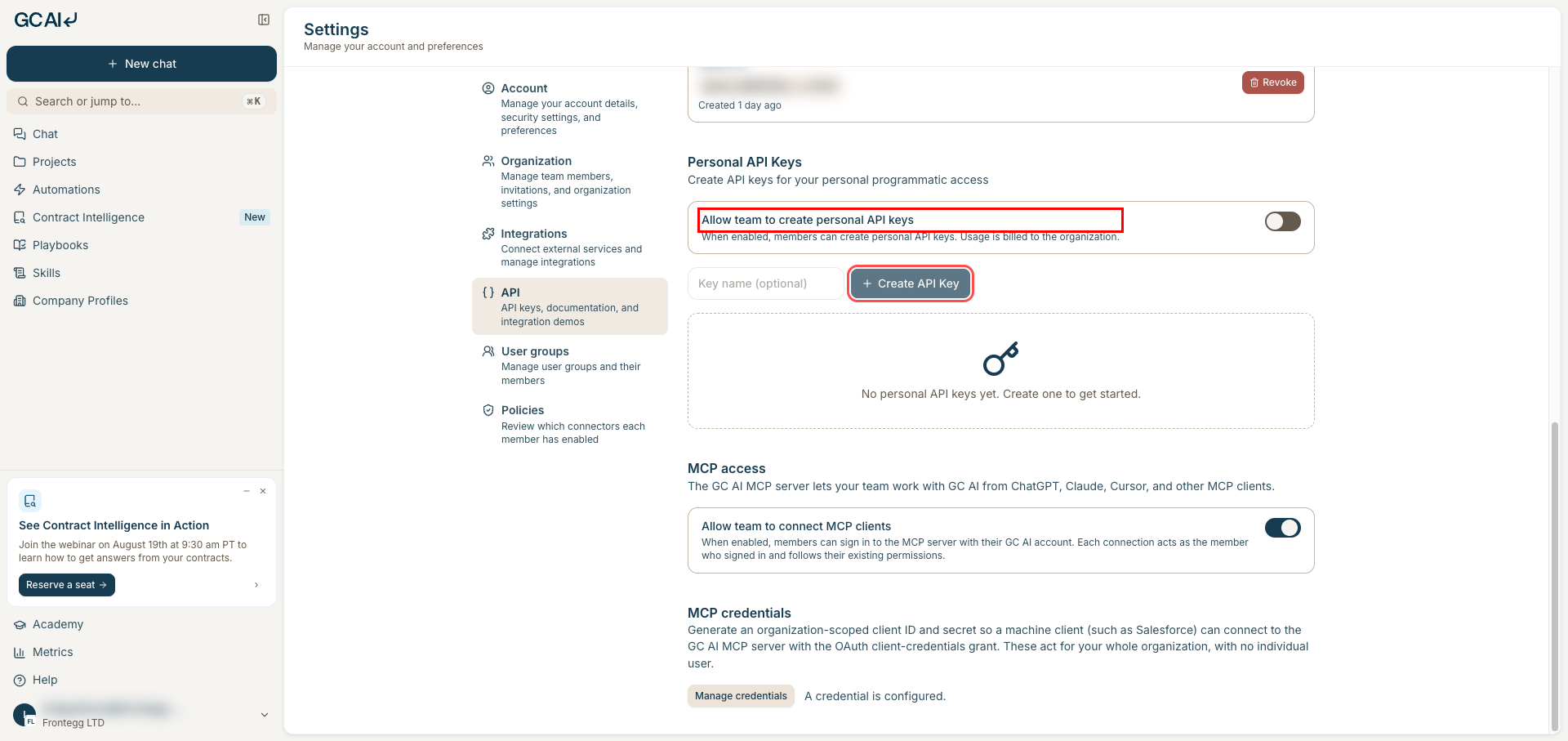
- To create a personal API key, an organization admin must first enable the Allow team to create personal API keys policy
Go to https://app.gc.ai and sign in. Open the account menu in the bottom-left corner and click Settings.
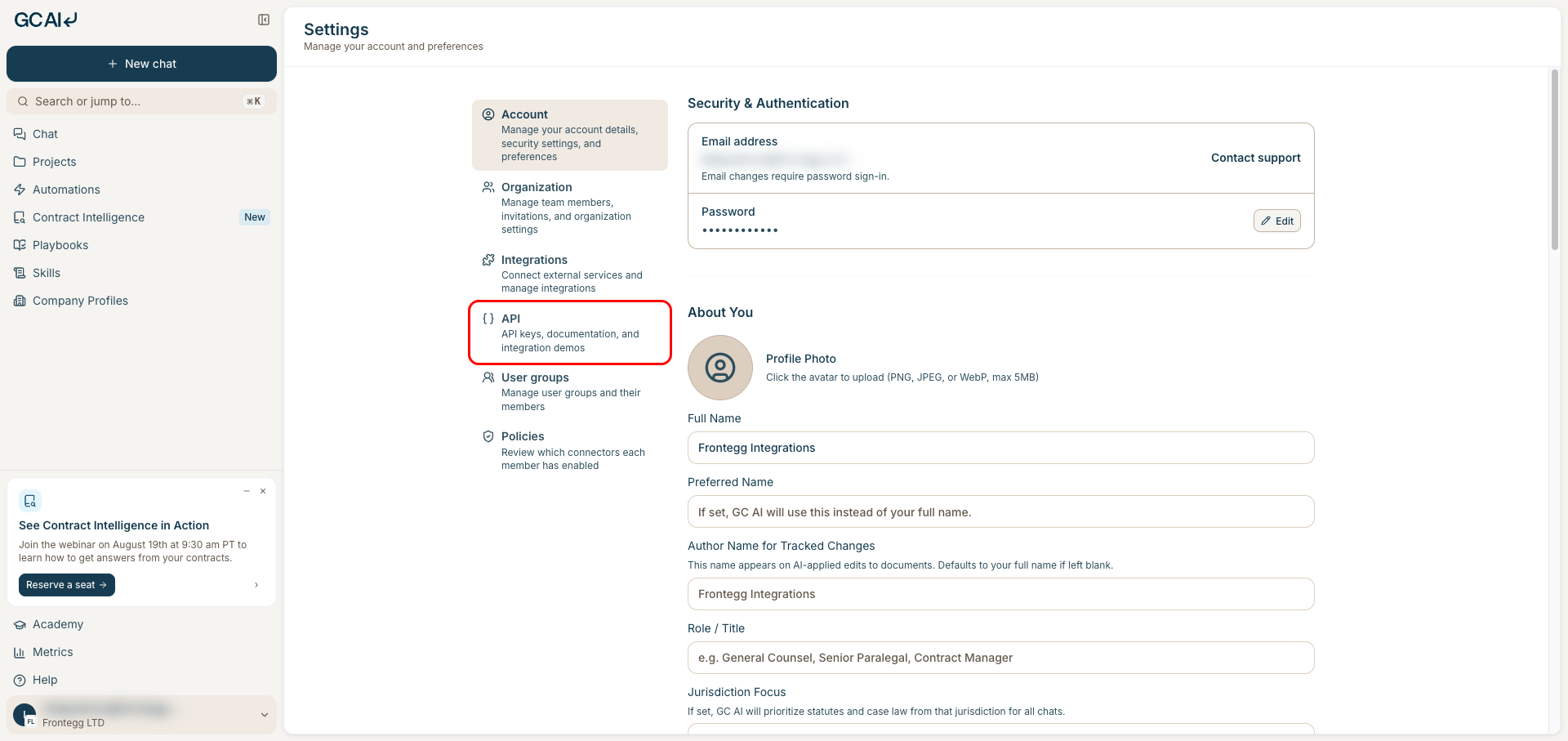
In the settings navigation, select API. This page holds the organization and personal API keys, links to the GC AI API reference, and the usage view.
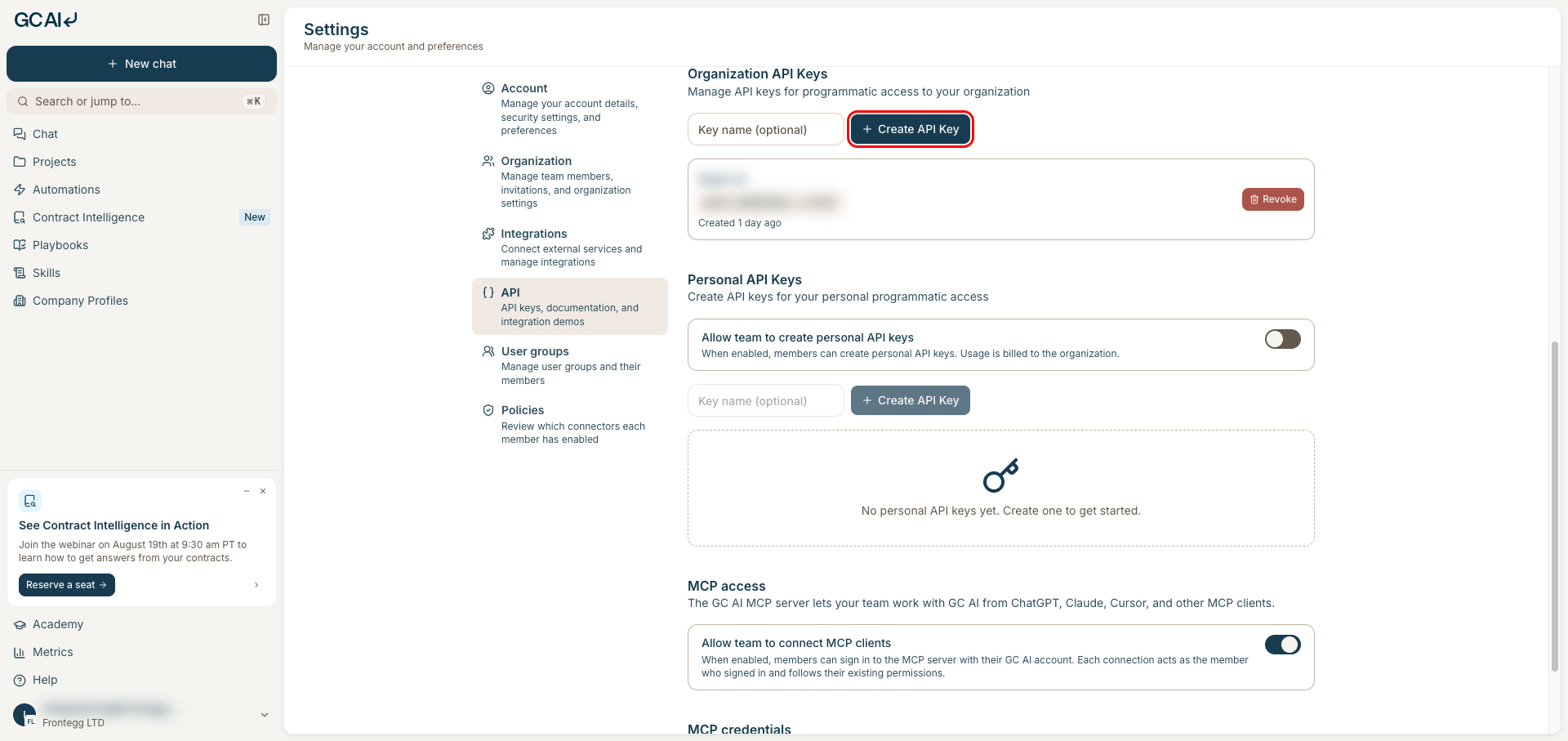
Scroll to Organization API Keys. Keys created here belong to the organization and are not tied to an individual member.
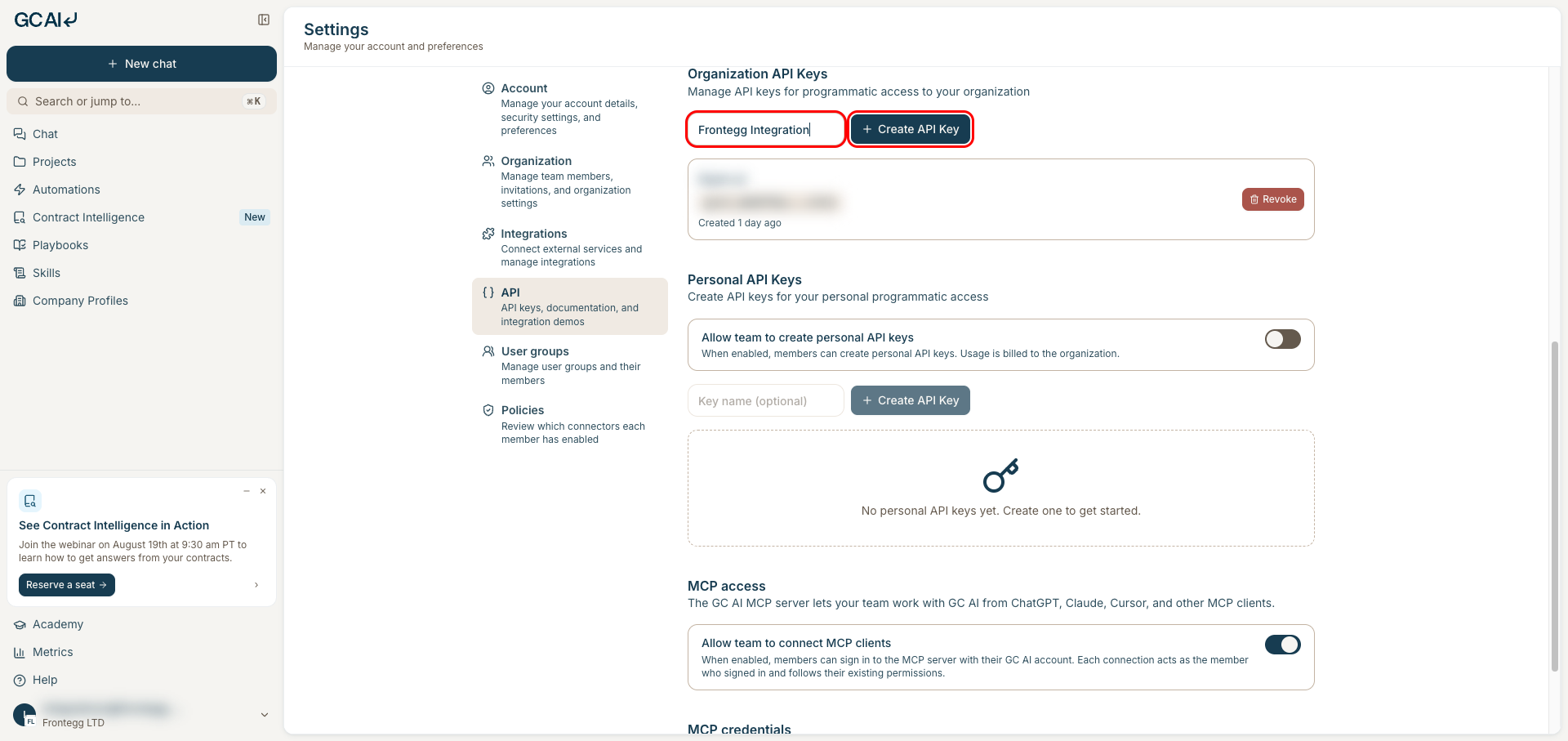
Enter a descriptive name such as Frontegg Integration in the Key name (optional) field, then click Create API Key.
GC AI shows the full key value exactly once in the API Key Created dialog. Copy it with the copy button and store it in a safe location, then click I've saved my API key.
Keep your credentials secure
Keep your credentials secure
The key value cannot be retrieved again after you close the dialog. Never share it or commit it to version control. Anyone holding the key can act on behalf of your GC AI organization.
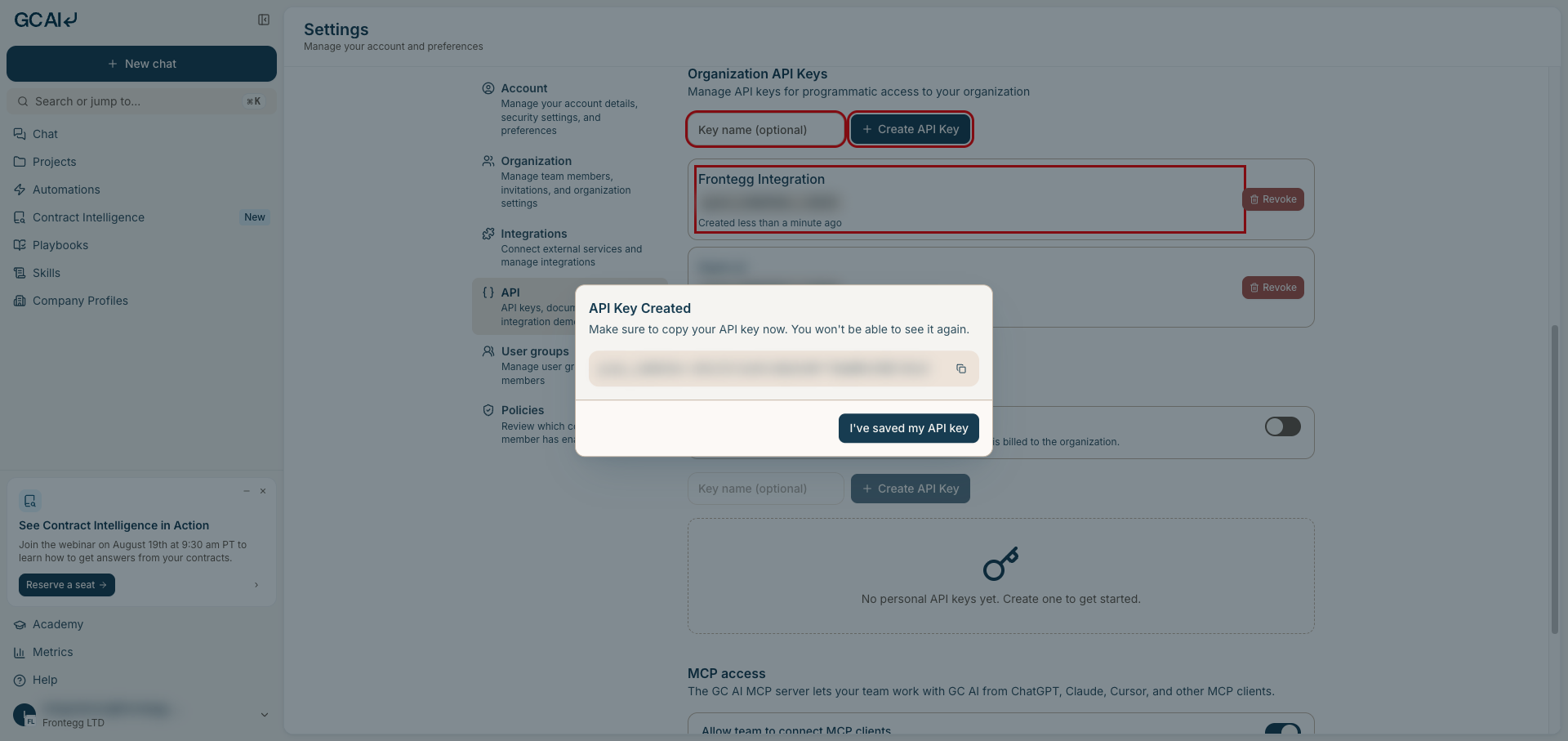
The new key appears under Organization API Keys with its name, a masked preview of the value, and its creation date. You can revoke it from the same row at any time.
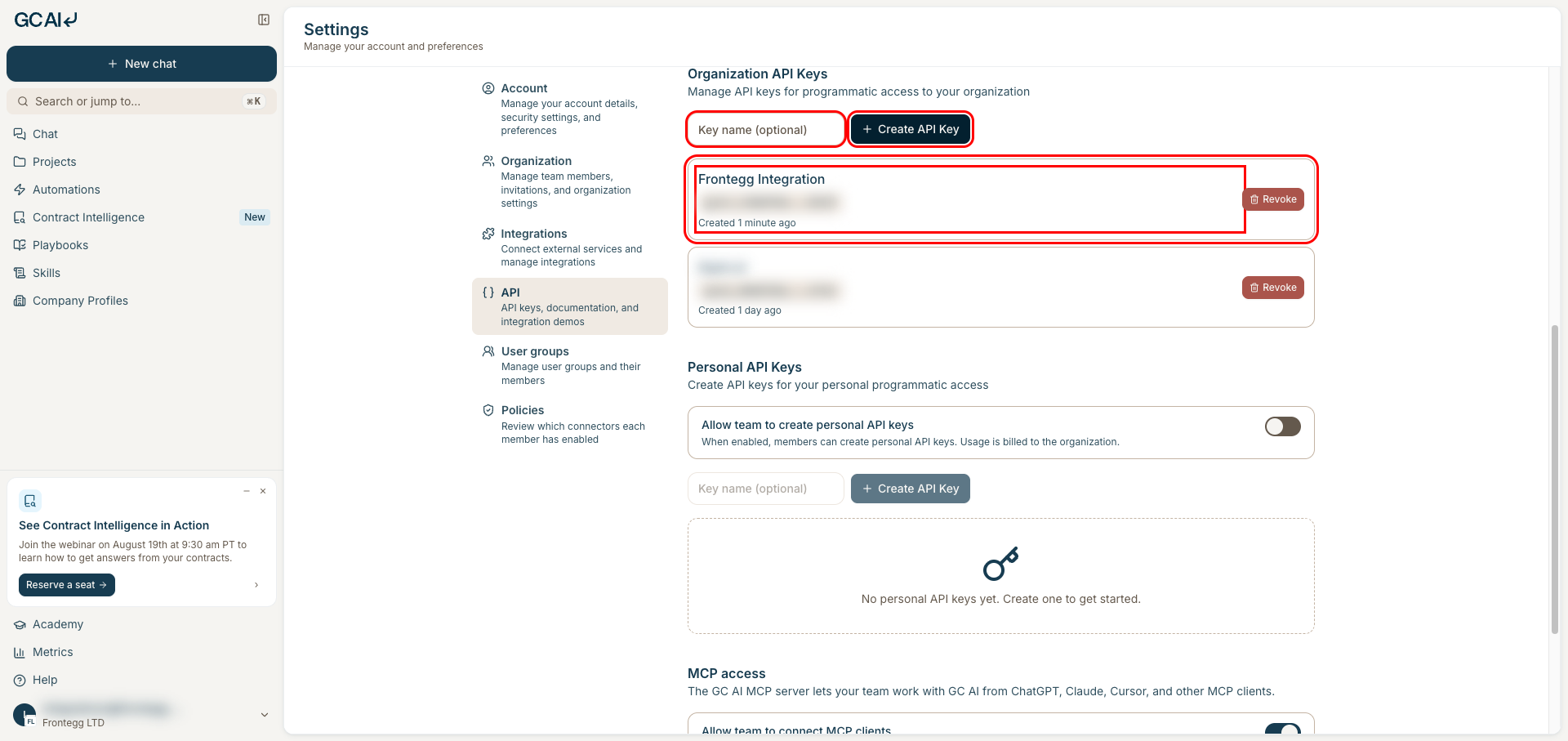
GC AI issues two key tiers, and the connector accepts either one. An organization key (prefix gcai_) carries no individual user, while a personal key (prefix u:gcai_) acts as the member who created it. Some operations require one tier and reject the other, and each tool states its own requirement in its description.
To create a personal key, turn on Allow team to create personal API keys under Personal API Keys as an organization admin, then have the member enter a key name and click Create API Key in that section. The key value is shown once, exactly as in step 5.
Which tier to use
Which tier to use
Personal keys are required for user-scoped operations such as starring a project, duplicating a playbook, editing playbook checks, and reading or updating your own profile. Organization keys are required for organization-scoped operations such as updating a company profile and reading credit usage or the usage summary. Neither tier covers the whole API surface.
Once you have your GC AI API key from the steps above, enter it in the integration configuration page of the Frontegg portal:
- Open the Frontegg portal and navigate to [ENVIRONMENT] → Integrations → GC AI.
- Paste the key into the API Key field.
- Click Save.
Keep your credentials secure
Keep your credentials secure
Never share or commit your GC AI API key to version control. Revoke a key from Settings → API as soon as it is no longer needed.
- Authentication — The GC AI External API authenticates with an API key. GC AI runs an OAuth 2.0 authorization server, but it exposes only identity scopes and no product scopes, so OAuth is not used by this connector and there are no scopes to select.
- Key tiers — The tier gate applies in both directions: some tools refuse an organization key and others refuse a personal one. GC AI checks the tier before it looks up the resource, so a mismatched key returns a tier error rather than a not-found error.
- File uploads — The connector uploads a file in a single request. GC AI's resumable multi-part upload flow is not exposed.
- MCP credentials — Minting OAuth client secrets for the GC AI MCP server is not exposed through the connector. Manage those under Settings → API → MCP credentials.
- Rate limits — Inference endpoints such as chat completions and playbook runs are limited to 60 requests per minute per organization and 20 per API key. Other endpoints are limited to 600 requests per minute per organization and 120 per API key. Exceeding a limit returns
429 Too Many Requestswith aRetry-Afterheader.